Subscribe to this blog to keep up to date with new resources, details of training, hints and tips and other useful information from the Business Librarians at the University of Westminster.
Showing posts with label e-resource. Show all posts
Thursday, 4 May 2017
e-resource highlight: Statista
Which brand has the most watched YouTube videos? Which brand has the most Instagram followers? What are the most popular mobile messaging apps worldwide?
If you need any statistics to back up your research Statista is the place to look. Access is free to all University of Westminster students and staff.
Statista aggregates statistical data on over 600 international industries from more than 18,000 sources, including market researchers, trade organizations, scientific journals, and government databases. With Statista, you can access the most recent and relevant statistics and studies on a specific topic by simply entering a keywor
https://www.statista.com/ and select CAMPUS login to login via Westminster.
Tuesday, 18 April 2017
e-resource highlight: Retail Week
![]() |
| Pic by Bazzadarambler on Flickr CC-BY |
Retail Week covers retail industry news & analysis, retail jobs and key retail market data, from across the entire retail sector. It is free to access to current Westminster staff and students, you just need to register for an account while on campus using your Westminster email address.
Get the latest info, for example, on how Brexit is affecting the retail sector in this Retail Week topic:
https://www.retail-week.com/topics/policy-and-legal/brexit
(register for a free account while on campus & use your Westminster email address)
Friday, 18 October 2013
Week 4: Getting access to resources off campus
You can access most of our online resources and e-journals off campus. However it can sometimes be a bit tricky, here are some pointers to help you:
- Always access via Library Search- once you are signed into Library Search you can type the name of the resource (e.g. Mintel) you want to access into the search box. Click on the link to open it. Accessing it via Library Search signals to the resource that you are from University of Westminster and will make it easier to log-in.
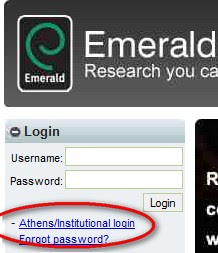
- Look for the Shibboleth/UK Federation/Institutional log-in link- once you have opened the resource, try to ignore any username/password boxes and instead look for a link which says either Shibboleth/UK Federation or login via your institution This will allow you select University of Westminster as your home institution.
- Log-in on the Westminster resource page with your university username and password- once you have completed the above you may be taken to a Westminster resource page, you can then login with your uni username and password.
BUSINESS SOURCE COMPLETE log-in, click the Shibboleth link
SEARCH FOR UNIVERSITY OF WESTMINSTER AND SELECT IT
EMERALD- select Institutional login and then UK Federation

PIC: Bergius on Flickr CC BY-NC-SA 2.0
Friday, 2 November 2012
Passport GMID has a new look
Passport
GMID contains business intelligence on industries, countries and
consumers. The interface hasn't changed much but the homepage does have
a new look. There are now three options:
- Welcome - link to online tutorials
- My Pages - personalisation tool
- Main Search menu
Tuesday, 30 October 2012
How to access and use Mintel: a quick start guide to finding market research reports
A new video clip is now available explaining how to access and use the e-resource Mintel on and off campus and how to do a basic search to find market research reports. View it here:
FAME and Mintel training 2012
Not sure where to look for UK company information and market research reports? Want to find out the turnover and profit of Tesco or get a market report on online grocery retailing? Come to a FAME and Mintel training session to find out more.
- Wednesday 31 October 2012- FAME/Mintel training
- Sessions begin at 11am, 12 noon, 1pm
- In the Marylebone Library Training Room (ask at the Library counter for directions)
- Turn up to any of the sessions, no need to book
If you can't make the session check out the below links for help and support:
FAME:
http://westminsterbusinessstudies.blogspot.co.uk/2011/11/fame-featured-e-resource.html
Mintel:
http://westminsterbusinessstudies.blogspot.co.uk/2012/10/how-to-access-and-use-mintel-quick.html
Friday, 26 October 2012
How to access and use FAME: a quick start guide to find UK company information
A new video clip is now available explaining how to access and use the e-resource FAME on and off campus and how to do a basic search to find UK company information. View it here:
Friday, 9 March 2012
Thursday, 10 November 2011
Tuesday, 1 November 2011
FAME: featured e-resource
how to access FAME on and off campus [video clip]
Monday, 31 October 2011
FAME & Mintel: training sessions 2011
This week on the blog we will be adding a series of posts relating to Mintel and FAME, such as how to access them off campus, how to navigate them etc. These two e-resources are used for finding market research and UK company information respectively. To keep updated automatically please subscribe to the blog either via email or RSS (see links on left hand side of the blog).
Upcoming training sessions for FAME/Mintel 2011: find out how to access
these resources (on and off campus) and learn how to use them to find company
and market information.
Classroom demos
Tuesday 1 November 11-12, 2011 Room: L195 (48 spaces)
Wednesday 2 November 11-12, 2011 Room L195 (48 spaces)
(the sessions are repeats so you only need to attend one)
Drop-Ins
During that week we will also be running drop-in sessions on
“Using company and market tools (FAME/Mintel)” at Marylebone library. The
same information will be covered but there will be fewer spaces available than
the classroom sessions. Drop Ins will take place in Marylebone Library
Training Room at 1-2pm from Monday 31 October to Friday 4 November 2011.
No need to book but space may be limited.
Thursday, 31 March 2011
Resource in focus: Business Source Complete: how to export to RefWorks/EndNote
If you use a RefWorks or EndNote account to store your references, exporting them from Business Source Complete is very easy as you can directly export from this e-resource:
1. Go to http://www.westminster.ac.uk/librarysearch
2. In “books, journals and more” search for Business Source Complete and click online access to open it
3. Search on your topic
4. Click on the Add folder icon of any results you want to save.
5. When you have finished adding results click on the folder view (top right hand corner)
6. In folder view select the items you want to save in your RefWorks/EndNote account by ticking the box next to each one
7. Now click the Export button
8. Choose direct export to RefWorks or EndNote and save
Don't forget to export them regularly if you are using a temporary folder in BSC to avoid losing any references, alternatively see our previous post on creating an account with BSC to save your results to a personalized account.
Wednesday, 30 March 2011
Resource in focus: Business Source Complete- how to save results
Accessing Business Source Complete via Library Search allows you to access articles from over 10,000 full text journals. Once you have accessed Business Source Complete you can also register for a personal account which allows you to: save preferences, save your results and organize your research into folders, save and retrieve your search history and create email alerts/RSS feeds.
- Access Business Source Complete via Library Search (search for it in the books, journals and more tab)
- If off campus you will need to "sign in via your institution" by choosing Uni of Westminster from a drop-down menu
- Once you are in you can click the sign in button in the top right hand corner
- Click Create a new account and fill in the necessary details, you will then be sign in to your personalized account
Alternatively....
You don't have to create a personalized account. If you prefer to save your references to a Refworks or Endnote account, you can use the "add to folder" button for temporary storage and then export to RefWorks/EndNote from that temporary folder. But remember this is only a temporary folder so your results may be lost if you close down or the system crashes, so remember to export frequently to your RefWorks/EndNote account. We will be posting instructions for that soon- keep an eye on the blog!You can also search for articles using "articles and more" on Library Search. Click the little star next to any results to save them to your e-shelf. Click on the e-shelf button (top right hand corner) to view your saved results, organize them into folders and export to RefWorks.
Wednesday, 23 February 2011
Featured resource: FAME: How to do a peer analysis
Next in our posts on our featured resource FAME is how to do a peer analysis. The peer analysis enables you to compare a group of companies, chosen by you, against one another.
1. First make sure you have cleared any previous searches you have done: on the home page if you see a box at the bottom of the page with your previous search strategy click the "clear all steps" button.
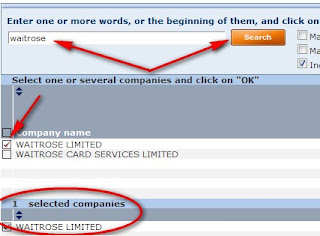
3. On the next screen you can search for your first company's name. In the list of results tick the box next to the correct company. This will add it to the selected companies in the box below.
4. To add your next company click the "add a company" button and repeat step 3. When you have finished adding companies and your chosen ones are all in the "selected companies" box click OK.
5. Once you have clicked OK it will take you back to the main search page. Now, from the menu on the right, click on peer analysis, from where you can choose a predefined analysis (e.g. comparing them by the key financials) or a new to create your own analysis. A new analysis will open up a wizard to guide you through the different categories you may want on your analysis.
Featured resource: FAME
Continuing on with our featured resource, FAME: today we look at how to do a simple company search. See our previous post if you want to know how to access FAME.
1. Once you are in FAME enter your chosen company name in the search box in the top left hand corner.
2. From the list of results click on the company your require, you can always check the registered number if you are unsure.
3. The standard report will be shown, to see the full report select "report format - full report" from the menu on the right hand side. You can scroll down the report to view the different sections.
4. The menu along the right hand side shows the contents of the report, from here you can navigate to each individual section of the report. For example if you just wanted to see the "key financials and employees" click on the financials and ratios tab and select "key financials and employees". To go back to the main report select "report format - standard report" from the menu.
5. You can export the data to a spreadsheet, Word or a PDF. Click on the export button. You can either do this for just one section of the report (see step 4 above) or all sections of the report (when you are displaying the standard report).
6. You can also modify which sections are shown in the report by clicking on the sections button and choosing which elements you want to see in the report.
7. When viewing figures remember to note what currency and unit is being used- for example figures are often given in th GBP or mil GBP.
8. You can also view a peer report for the chosen company or view diagrams such as the ownership structure by selecting these sections from the menu (near the bottom).
See also our post.....how to do a peer analysis in FAME
Friday, 28 January 2011
Featured e-resource: WARC
WARC (World Advertising Research Centre) contains full-text articles from a number of marketing journals (including Admap), case studies of successful marketing campaigns, worldwide advertising statistics and news. A new interface for WARC has been launched offering a more powerful search and a more intuitive screen for browsing.
Tip: Click on the forecasts & data tab to get global adspend data, adspend forecasts, global media costs and TV & newspaper trends.
Tip: Under the case studies tab you can get access to campaign videos- search and view the videos then read the advertising effectiveness case study behind the campaign.
Monday, 8 November 2010
Mediatel access
Accessing Mediatel is now much easier. To get access on and off campus: go to Library Search, in the "books, journals & more" tab search for Mediatel, click on the online access button and follow the link.
Mediatel is an excellent resource for UK media intelligence. It includes daily news as well as an in-depth data archive from major research sources. Use it to find media information such as press circulation figures and advert rates, demographic reports, TV viewing figures and sponsorship information, online traffic data and revenue reports, radio audience figures, box office figures, and media trends and consumer behaviour.
Subscribe to:
Posts (Atom)